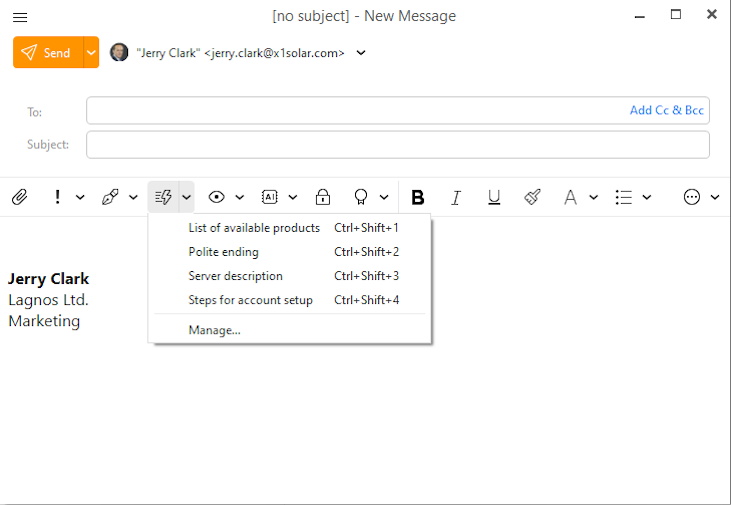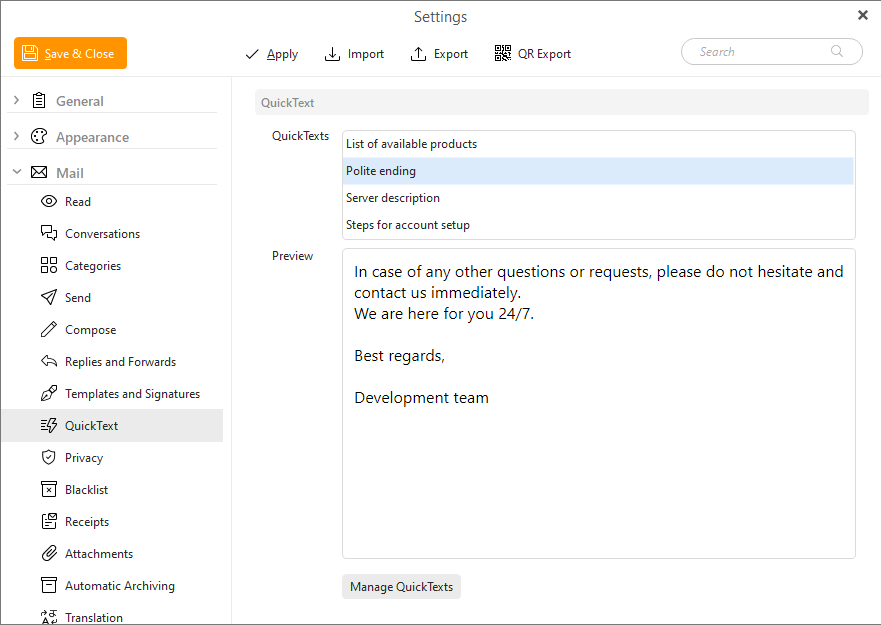
QuickText enables you to insert pre-made chunks of text (snippets) to your messages within seconds. This spares you from having to type the same phrases, sentences or even whole emails over and over again.
Click Manage QuickTexts... button to create and view QuickTexts.
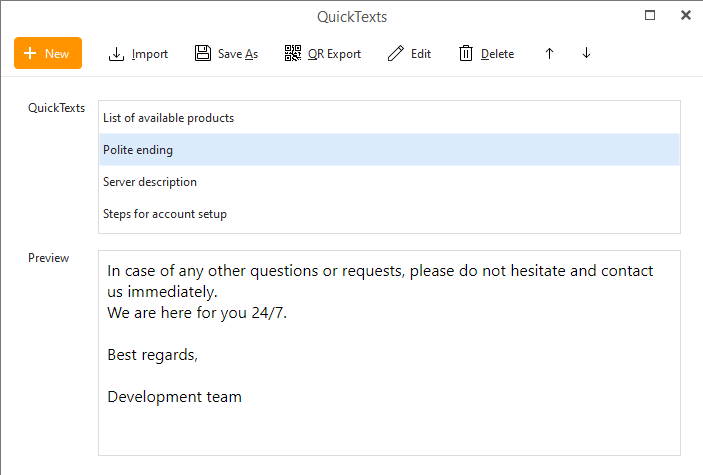
Click to create a new text snippet which will bring up an editor window for customization of your new QuickText:
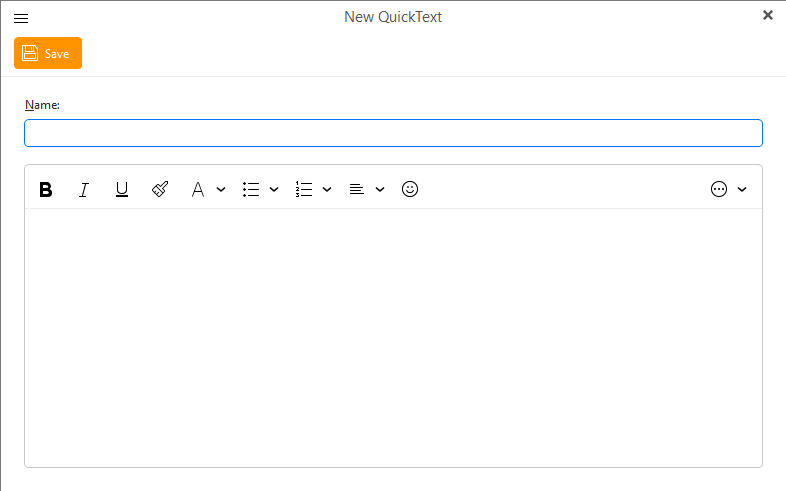
Here you can customize your own QuickText, enter the name and then customize the text in the text window.
Once you have finished your QuickText, click on the OK button to finish the process.
 Import a QuickText from an .html file.
 Save a selected QuickText into an .html file.
 Export selected QuickTexts into a QR code which can be scanned by an eM Client mobile app.

Clicking on Edit will bring up the same QuickText construction window as New, which will allow you to edit an existing QuickText.
 To delete an existing QuickText , select it in the QuickTexts list and click on Delete (trash icon).
 Change the order of your QuickTexts, the order will be the same in the compose window and will determine keyboard shortcuts for the QuickTexts.
QuickText button is located directly in the compose email window (see below). Once you have created your own QuickTexts you will be able to implement them into your text in two clicks or the correct keyboard shortcut.